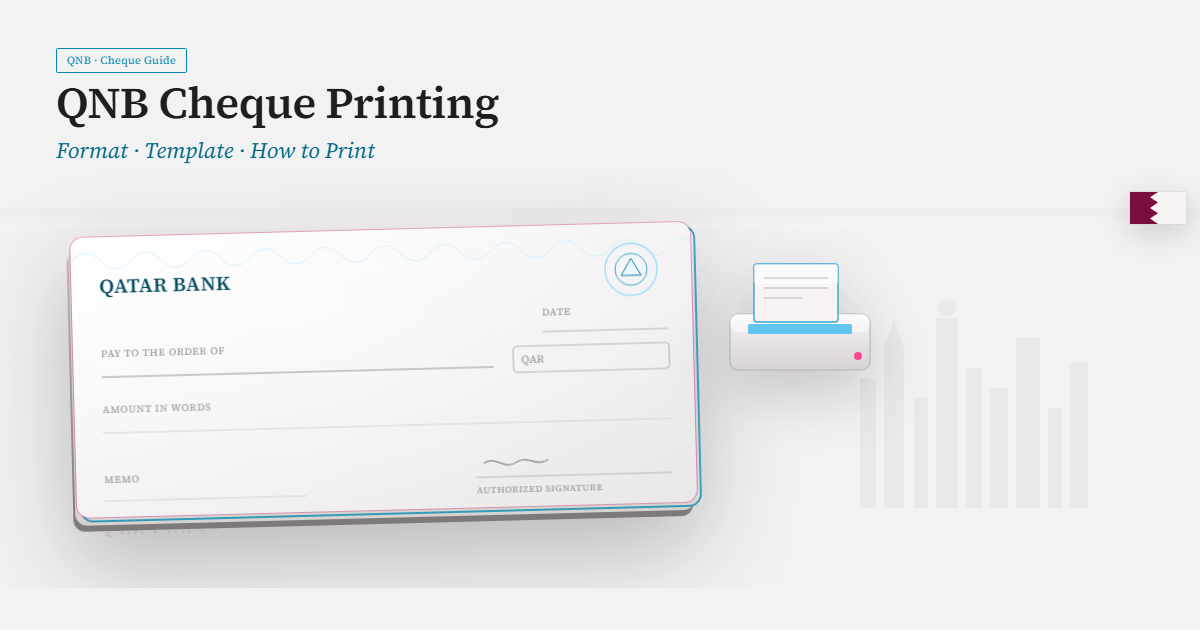
If you want to print cheques for your business, the first thing you need to understand is the cheque printing format — where each field sits on the cheque and how to line up your printed text with it. Get the format right and your cheques come out clean and bank-ready. Get it wrong and they're misaligned, rejected, and waste your chequebook leaves.
A lot of people start by searching for a Word or Excel cheque template. In this guide, we'll explain the cheque printing format properly, show you how templates actually work (and where they fall short), and point you to the simplest free way to print accurate cheques every time.
Quick Answer: What is the cheque printing format?
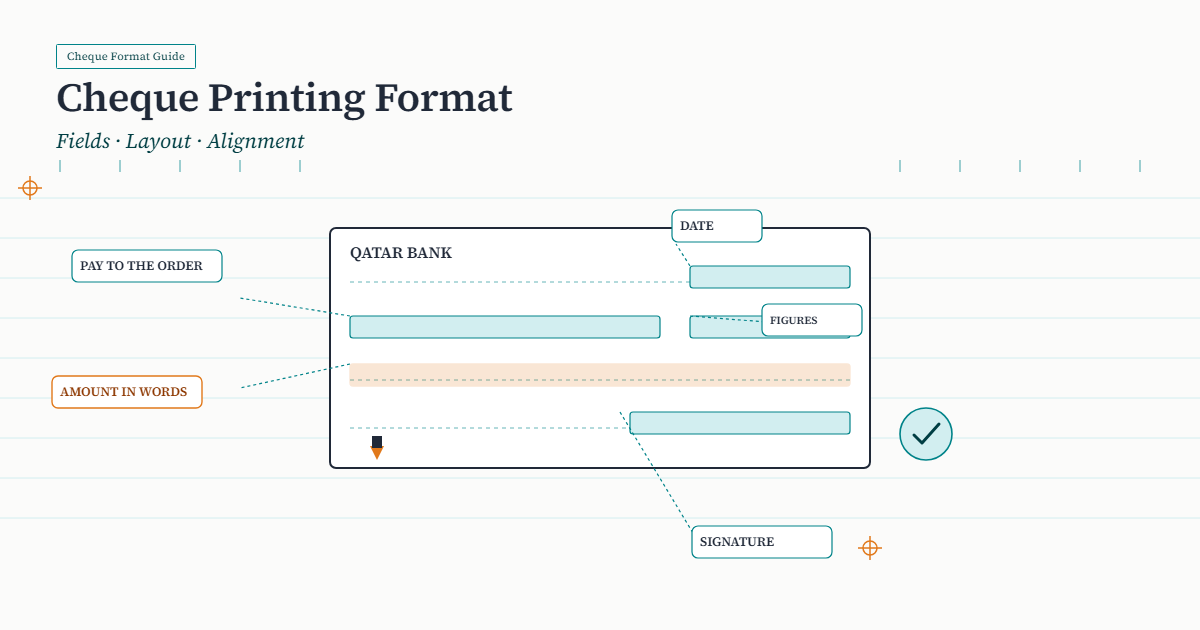
The cheque printing format is the standard layout of a cheque — the fixed positions of the date, payee, amount in figures, amount in words, and signature line, plus the bank's pre-printed MICR line at the bottom. To print a cheque, you align your printed text to these positions on your genuine bank cheque leaf. The exact measurements vary slightly by bank, so a test print is always used to confirm alignment.
Understanding the cheque printing format
Every business cheque follows the same core structure. Knowing where each field belongs is the foundation of correct cheque printing:
- Date—usually top-right
- Payee ("Pay to the order of") — the person or company being paid
- Amount in figures — the numeric amount, usually in a small box
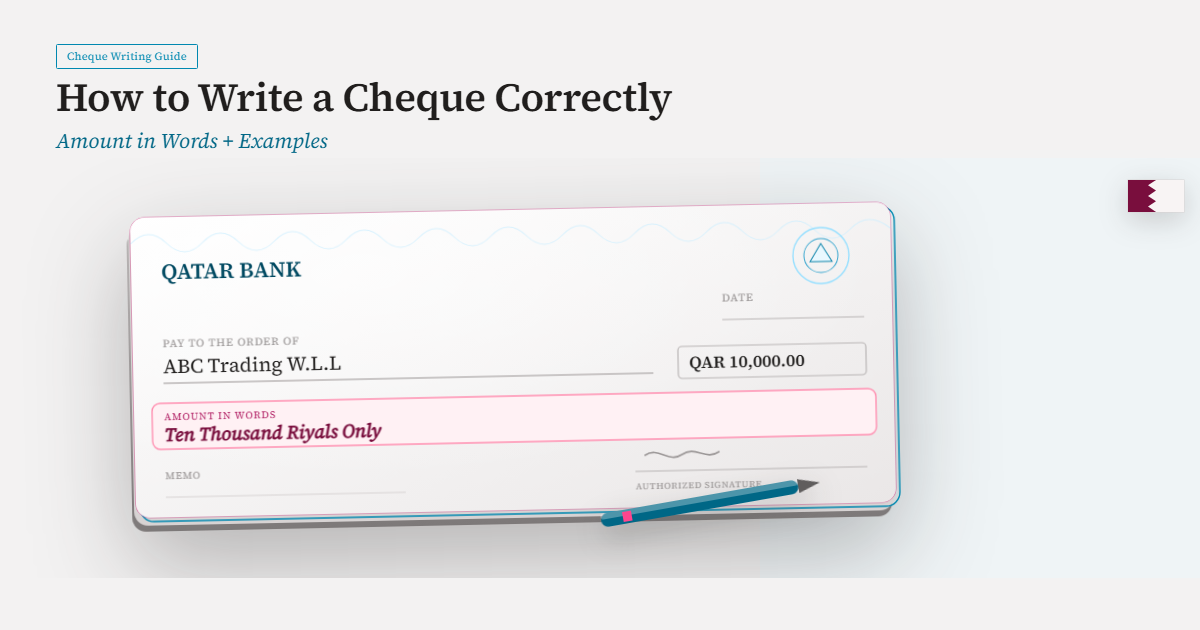
- Amount in words — the written-out amount, ending with "Only"
- Signature line — bottom-right (signed by hand, never printed)
- MICR line — the coded numbers along the bottom edge, pre-printed by the bank. You never print over this.
The cheque leaf itself is issued by your bank. "Cheque printing" simply means printing your payment details into the correct positions on that leaf — not creating a cheque from scratch.
Do cheque dimensions and layout vary by bank?
Yes — slightly. The overall structure is standard, but the exact position of each field can differ between banks and even between chequebook batches. In Qatar, for example, the layout for a QNB cheque differs a little from a Doha Bank or Commercial Bank of Qatar cheque.
That's why there's no single "universal" set of measurements you can copy once and forget. The reliable approach is to match the layout to your specific bank's cheque and confirm it with a test print on plain paper before printing on a real cheque.
What about a cheque template in Word or Excel?
Many people look for a cheque template in Word or Excel. A template is really just a layout that positions text to match a cheque's format. It can work — but there are real drawbacks you should know about before relying on one:
- Alignment breaks easily. A Word or Excel template is set for one specific margin and printer. Change the printer, the paper feed, or the chequebook batch, and the alignment drifts — leading to misprints.
- No amount-to-words conversion. You still type the amount in words by hand, so the common "words don't match figures" mistake remains.
- No record keeping. A spreadsheet doesn't track which cheques you've printed or your post-dated cheque due dates.
- Fiddly to maintain. Every bank format needs its own template, and every alignment tweak is manual.
For a one-off personal cheque, a template might be fine. For a business printing cheques regularly, static templates quickly become more trouble than they're worth. (We cover this in detail in our guide on cheque printing software vs Excel templates.)
The easiest free way to print cheques correctly
Instead of building and maintaining Word or Excel templates, you can use free cheque printing software that already knows the cheque printing format for your bank.
Cheqaat is free to download and comes with ready-made layouts for Qatari banks, so you don't measure or align anything manually. You:
- Select your bank — the correct format loads automatically
- Enter the payee, date and amount — the amount converts to words for you
- Test-print and print — clean, bank-ready cheques in seconds
It also keeps a print history and tracks post-dated cheques — things a static template can't do. Think of it as a ready-made cheque template that fixes its own alignment and does the amount-in-words for you.
Download Cheqaat free · See pricing
(Printing accurately is one half of a good cheque. The other half — having sufficient funds in the account — is always your responsibility.)
Tips for getting the cheque printing format right
- Always test-print on plain paper first, then hold it against a real cheque to check alignment.
- Never print over the MICR line at the bottom.
- Start the amount close to the currency symbol so no digits can be added in front.
- Match the amount in words and figures exactly, and end the words with "Only."
- Save your bank's layout so you don't re-align every time.
- Keep a record of every cheque printed — number, payee, amount, date.
Frequently Asked Questions
What is the correct cheque printing format? It's the standard cheque layout — date, payee, amount in figures, amount in words, and signature line, with the bank's pre-printed MICR line at the bottom. You print your details into these fixed positions on your genuine cheque leaf.
Is there a free cheque printing template? You can use a Word or Excel template, but it often breaks alignment and doesn't convert amounts to words. A simpler free option is cheque printing software like Cheqaat, which includes ready-made bank layouts and prints accurately with no manual setup.
Why does my cheque print come out misaligned? Usually the print margins don't match your specific cheque or printer. Adjust the alignment and test-print on plain paper before printing on a real cheque. This is also why static Word/Excel templates drift out of alignment.
Does the cheque format change between banks? The structure is standard, but exact field positions vary slightly by bank and chequebook. Match the layout to your specific bank and confirm with a test print.
Can I print on the MICR line at the bottom? No. The MICR line is pre-printed by the bank and must never be printed over.
Conclusion
Getting the cheque printing format right is mostly about one thing: lining up your printed text with the correct positions on your bank's cheque — and always doing a quick test print first. Word and Excel templates can do this for a one-off, but they drift out of alignment and create extra manual work for a business.
If you print cheques regularly, free cheque printing software is the easiest, most reliable option — it already knows the format, converts amounts to words, and keeps a record for you.
Download Cheqaat free and print accurate, bank-ready cheques without the template hassle.