If your business banks with Qatar National Bank, you already know how often cheques come up — for suppliers, rent, payroll, and contractor payments. And if you've ever had a cheque returned because the printing was misaligned or the details didn't sit in the right place, you know how frustrating (and costly) it can be.
The good news: printing QNB cheques neatly and accurately isn't complicated once you understand the cheque format and set up your alignment correctly. This guide walks you through the QNB cheque format, how to print a cheque step by step, how cheque "templates" actually work, and how to avoid the common mistakes that get cheques rejected.
Quick Answer: Can you print cheques for QNB?
Yes. You can print cheques for your Qatar National Bank (QNB) account by printing the payment details — payee name, date, amount in figures, amount in words, and so on — directly onto your genuine QNB chequebook leaves. The key is aligning each field to the correct position on the cheque. Cheque printing software like Cheqaat uses a pre-configured layout for QNB's cheque format so everything lines up automatically, with no manual measuring.
Understanding the QNB cheque format
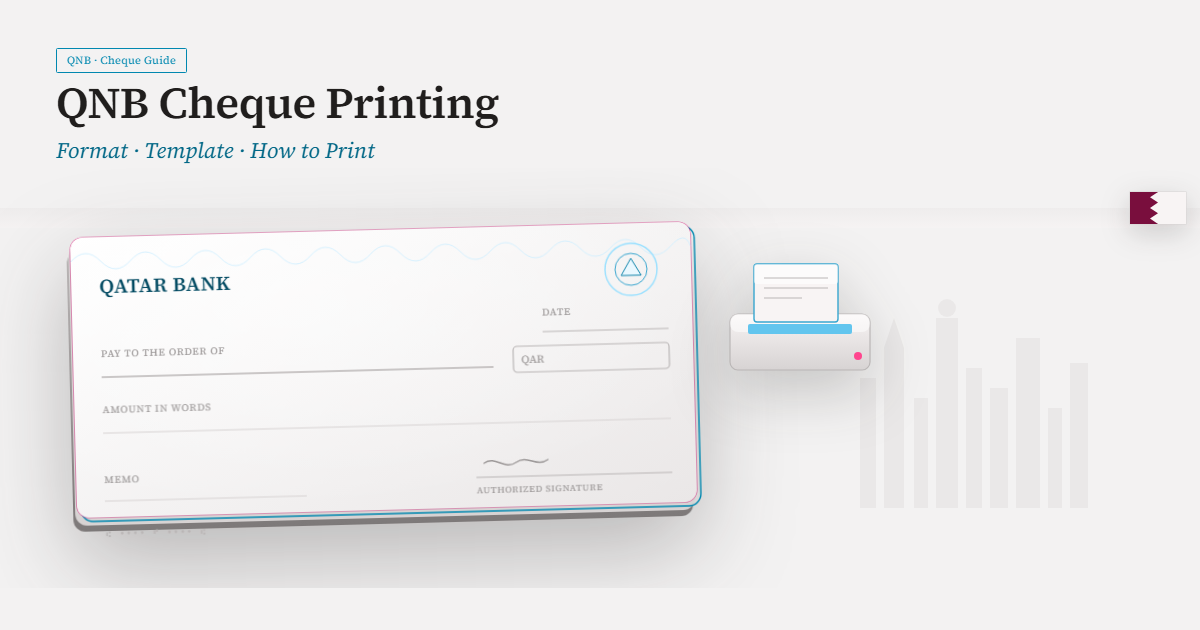
A QNB business cheque follows the same core structure as any standard bank cheque. To print accurately, you need to know where each field sits so your printed text lands in the right place:
- Date—usually top-right
- Payee ("Pay to the order of") — the name of the person or company you're paying
- Amount in figures — the numeric amount, typically in a boxed area
- Amount in words — the written-out amount
- Signature line — bottom-right, signed by hand (not printed)
- MICR line — the coded line of numbers along the bottom (cheque number, branch, account) — this is pre-printed by the bank; you never print over it
Important: exact field positions can vary slightly between chequebook batches and account types. That's why a test print on plain paper (explained below) is the single most important step before printing on a real cheque.
How to print a QNB cheque, step by step
Step 1 — Get your genuine QNB chequebook ready You print onto the real cheque leaves issued by QNB — not onto blank paper. The software adds your payment details in the correct positions; the cheque itself is your bank's official leaf.
Step 2 — Select the QNB format in your cheque software In Cheqaat, choose QNB as your bank. The layout for QNB's cheque format loads automatically, so the fields are positioned for you.
Step 3 — Enter the payment details. Type the payee name, date, and amount. Good software converts the amount in figures to words automatically, so the two always match (a common rejection cause when done by hand).
Step 4 — Do a test print on plain paper first. Print the cheque details onto a plain sheet, then hold it against an actual QNB cheque leaf up to the light. Check every field lines up. If anything is slightly off, adjust the alignment and test again. Never skip this step.
Step 5 — Print on the real cheque Once the test print lines up perfectly, load the QNB cheque leaf into your printer and print. Then sign by hand.
Step 6 — Keep a record Note the cheque number, payee, amount, and date. A clear record helps you track payments and follow up if a cheque is ever returned.
How QNB cheque "templates" actually work
When people search for a "QNB cheque template," what they usually need is an alignment template — a layout that positions each field correctly so printed text lands in the right spot on a genuine QNB cheque leaf.
This is different from a blank cheque. You're not creating a cheque; you're printing your payment details onto your bank's official cheque. Cheque printing software stores this alignment as a reusable QNB layout, so once it's set up, every future cheque prints correctly without re-measuring.
Common QNB cheque printing problems (and how to fix them)
| Problem | Fix |
|---|---|
| The text is slightly off-position. | Adjust the top/left margins in your software, then test-print again on plain paper. |
| Amount in words and figures don't match. | Use software that auto-converts figures to words. |
| The printer pulls the cheque crooked. | Use the manual feed tray and a guide; print one cheque at a time if needed. |
| Faded or unclear print | Check ink/toner and set the printer to normal/high quality. |
| Printing over the MICR line | Never print on the bottom coded line — it's pre-printed by the bank. |
If a cheque is ever returned, always confirm the exact reason with QNB — and remember that printing accuracy is only one factor. Having sufficient funds in the account is the other (and the more serious one legally in Qatar).
Tips for businesses printing QNB cheques in bulk
If you issue many cheques — payroll, vendor runs, rent — manual handling becomes slow and error-prone. A few tips:
- Batch print multiple cheques in one run instead of one at a time.
- Keep the QNB layout saved so you never realign.
- Track post-dated cheques (PDCs) with their due dates so none are presented early or missed.
- Maintain a clear log of every cheque printed.
How Cheqaat makes QNB cheque printing easy
Cheqaat is cheque printing and PDC management software built for businesses in Qatar. For QNB specifically, it helps you:
- Print on QNB's format using a pre-configured layout — no manual measuring
- Auto-convert amounts to words so figures and words always match
- Batch print cheques for payroll, vendors, and rent
- Track post-dated cheques and their due dates
- Keep a print history of every cheque issued
- Work 100% offline — your financial data stays on your device
Cheqaat handles the technical accuracy of cheque preparation. (It can't manage your cash flow — sufficient funds are always your responsibility.)
Download Cheqaat free · See pricing
Frequently Asked Questions
How do I print a cheque for my QNB account? Load your genuine QNB cheque leaf into your printer, select the QNB format in your cheque software, enter the payee, date, and amount, test-print on plain paper to confirm alignment, then print on the cheque and sign by hand.
Is there a QNB cheque template? Cheque printing software like Cheqaat includes a pre-configured alignment layout for QNB's cheque format. It positions your printed details correctly on a genuine QNB cheque leaf — it does not create a cheque from scratch.
Why does my QNB cheque print misaligned? Usually the print margins need adjusting. Fix the top/left alignment in your software and test-print on plain paper, holding it against a real cheque to confirm before printing.
Can I print multiple QNB cheques at once? Yes. With batch printing you can print many cheques in a single run — useful for payroll, rent, and vendor payments.
Do I print over the MICR (code) line at the bottom? No. The MICR line is pre-printed by QNB. Never print over it.
Conclusion
Printing QNB cheques accurately comes down to two things: using the correct alignment for the QNB format and always doing a quick test print before using a real cheque leaf. Get those right and you'll avoid the misaligned, rejected cheques that waste time and chequebook leaves.
For businesses issuing cheques regularly, cheque printing software removes the guesswork — saving the QNB layout once and printing clean, accurate cheques every time, with post-dated cheque tracking built in.
Download Cheqaat free and print bank-ready QNB cheques in seconds.