Let me ask you a simple question.
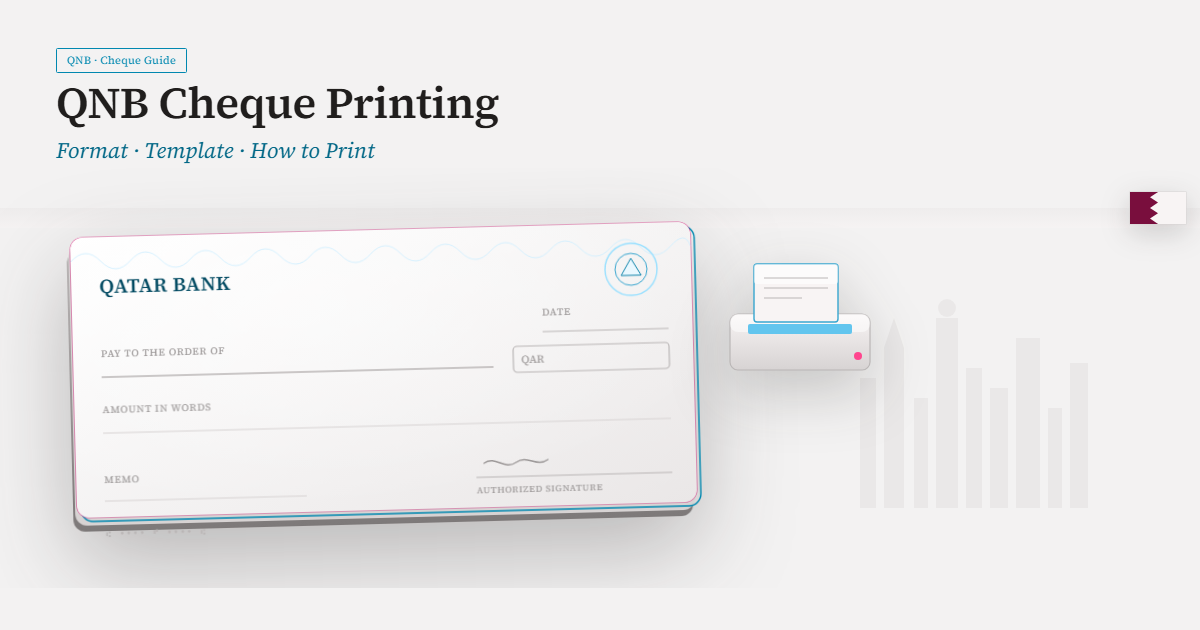
You have a standard office printer. You have blank cheque paper. And you want to print a cheque on a printer.
Simple, right?
Not always. When you hit print, the date shifts left. The payee name cuts off the edge. The amount prints outside the box. And suddenly, you have wasted a cheque leaf.
If this sounds familiar, you are not alone. Cheque alignment issues are one of the most common frustrations in business banking. Many people struggle with how to print cheques on a printer without wasting stock.
The good news? You can print cheques on a printer without alignment issues. You just need the right settings and a few simple steps.
In this guide, I will walk you through exactly how to print cheques on a printer — inkjet or laser — without wasting a single cheque leaf.
Why Cheque Alignment Goes Wrong When You Print Cheques on a Printer
Before we fix the problem, let us understand why it happens.
Most printers are designed to print documents on standard A4 or Letter paper. Cheque paper is smaller and has pre-printed fields (date, payee, amount, MICR). When you send a print job, the printer applies its default margins and scaling. The result? Everything shifts.
Common causes of misalignment when you print cheques on a printer:
| Cause | Why It Happens |
|---|---|
| Scaling enabled | The printer tries to "fit" the cheque to the page. |
| Wrong paper size | The printer expects A4; you loaded cheque stock. |
| Browser zoom is not 100%. | PDF preview zooms in/out. |
| Driver settings | The printer driver applies its own margins. |
| Paper tray variation | Different trays have different alignments. |
The good news is that all of these are fixable. Let us get into it.
Step 1: Use the Right Cheque Paper for Printing Cheques on a Printer
The first step to printing cheques on a printer is using the right paper.
Options:
| Type | Best For |
|---|---|
| Pre-printed cheque stock | Most businesses — MICR is already printed; you only print payee/amount/date. |
| Blank cheque stock | Requires MICR toner and font — more complex setup |
Recommendation: For most businesses, pre-printed cheque stock is easier. The bank's MICR code is already printed. You just need to print the variable information (payee, amount, date).
Pro tip: Always buy cheque stock that matches your printer type. Some printers handle thicker paper better than others.
Step 2: Set Up Your Printer Correctly for Cheque Printing
This is the most important step. If your printer settings are wrong, nothing will align when you print cheques on a printer.
A. Set scaling to 100% for cheque printing.
This is the number one cause of misalignment.
| Where to Check | What to Do |
|---|---|
| Printer driver | Ensure scaling = 100% — not "Fit to page" or "Shrink oversized pages". |
| PDF viewer (Adobe Reader) | Select "Actual size" — not "Fit to page". |
| Browser | Set zoom to 100% before printing. |
| Print dialogue | Disable "Auto-rotate and centre". |
Why this matters: Even 2-3% scaling can shift your cheque fields by several millimeters — enough to cause a bank rejection.
B. Select the Correct Paper Size for Printer Settings
If your printer expects A4 and you load cheque stock, the alignment will be off.
| Printer Type | What to Do |
|---|---|
| Laser printer | Go to Printer Properties → Paper/Quality → Select the correct size (A4, Letter, or Custom). |
| Inkjet printer | Same process — ensure the paper size matches the tray. |
| If your cheque is custom size | Create a custom paper size in Windows Printer Properties (e.g., 8.5" x 7") |
C. Use the Correct Printer Driver
Some printer drivers are more reliable for cheque printing than others.
Recommendations:
- PCL 6 drivers often deliver more predictable form rendering than PostScript (PS) drivers
- Update your driver — older drivers can cause unexpected alignment shifts
- Avoid "borderless" or "full-bleed" printing modes — they change margins
D. Check Your PDF Viewer Settings for Cheque Printing
If you are printing from a PDF preview (common in accounting software), your PDF viewer settings matter.
| Viewer | Setting |
|---|---|
| Adobe Acrobat Reader | Select "Actual size" — disable "Fit to page" and "Auto-rotate and centre". |
| Chrome PDF Viewer | Disable Chrome PDF Viewer and use Adobe Reader instead. |
| Any other viewer | Ensure scaling is 100% and margins are none. |
Pro tip: Adobe Reader is more consistent for cheque printing troubleshooting than built-in browser viewers.
Step 3: Run a Test Print on Plain Paper Before You Print Cheques on a Printer
Never print directly on cheque stock for the first time.
What to do:
- Load plain A4 or letter paper into your printer
- Print a sample cheque using your software or template
- Hold the plain paper printout against a blank cheque
- Hold both up to a window or bright light — you should see the fields align
- If alignment is off, adjust your settings and print another sample
This saves you from wasting expensive cheque stock.
Pro tip: Keep a "cheque alignment file"—a sample printout that you know is perfectly aligned. Use it as a reference every time you change printers or settings.
Step 4: Adjust Alignment Using Software Settings for Cheque Printing
Most cheque printing software includes alignment tools. If your printout is off by a few millimeters, you can adjust it here.
QuickBooks
- Go to Transactions → Expenses → Print Cheques
- Click Print setup
- Click No, continue setup (twice)
- Drag the alignment grid to match your cheque format
- Click View preview and print sample → adjust again if needed
Sage 50
- Open the cheque form in Form Designer
- Use Form Designer to make small offset adjustments
- Print a test on plain paper and verify
Sage Intacct
- Go to My preferences → Cheque preferences
- Select 'Verify your printer alignment'
- Use the crosshair PDF to adjust horizontal and vertical offsets
Cheqaat
Cheqaat includes pre-configured templates for major banks. You simply select your bank, and the alignment is handled automatically. No manual adjustments needed to print cheques on a printer.
Step 5: Advanced Troubleshooting for Cheque Printing
If you still have alignment issues after following the steps above, here are some advanced fixes for cheque printing troubleshooting.
Check Paper Feed
| Issue | Fix |
|---|---|
| Inconsistent alignment per batch | Paper feed may be inconsistent. Use fresh, flat stock. Keep the tray no more than 3/4 full. |
| Pages skew diagonally. | Worn feed rollers — consider replacing them. |
| Network printer variability | Try a direct USB connection for initial calibration. |
Save Printer Profiles for Cheque Printing
If you have multiple printers or print cheque batches regularly, save a profile:
- Create a dedicated printer profile for cheque printing
- Save the settings: scaling = 100%, correct paper size, specific tray
- Use this profile every time you print cheques on a printer
This ensures consistency across print runs.
Check MICR Alignment (If Printing on Blank Stock)
If you are printing on blank cheque stock, MICR alignment is critical. Banks require precise MICR line positioning.
- Use a MICR gauge—slides over your cheque to verify alignment
- Use MICR toner — standard toner does not produce the magnetic signal banks need
- Use a MICR font — not a standard font
Bank validation: Before your first production run, take a few sample cheques to your bank. Ask them to verify readability. Banks will often test-scan to confirm the MICR line and position.
Troubleshooting: Quick Reference Table
| Problem | Likely Cause | Fix |
|---|---|---|
| Text prints too far left/right | Scaling not 100% | Set scaling to 100% — disable "Fit to page". |
| Text prints too high/low | Driver margins | Adjust vertical offset in alignment settings. |
| Inconsistent alignment per run | Paper feed variation | Use fresh stock, keep tray 3/4 full, direct USB connection. |
| Printer driver overriding settings | Outdated or wrong driver | Update driver; use PCL 6 driver. |
| PDF prints misaligned | PDF viewer settings | Use Adobe Reader, set "Actual size" |
How Cheqaat Solves Alignment Issues
Cheqaat is designed to print cheques on a printer without alignment headaches.
Key features:
- Pre-configured templates for major banks — alignment handled automatically
- No manual adjustment — select your bank, enter details, print
- Offline and secure — your data stays on your device
- Batch printing — print multiple cheques with consistent alignment
How to print a cheque with Cheqaat:
- Select your bank from pre-configured templates
- Enter the details — payee, amount, date
- Click print — alignment is handled automatically
No scaling issues. No manual offset adjustments. No wasted cheque leaves.
Frequently Asked Questions
Can I print cheques on a standard inkjet printer?
Yes. However, if printing on blank stock with MICR, a laser printer with MICR toner is preferred. For pre-printed stock, any standard printer works.
Why are my cheques printing misaligned?
Usually due to scaling, paper size, or printer driver settings. Set scaling to 100%, ensure the correct paper size, and update drivers.
Do I need a special printer to print cheques on a printer?
No. Any standard inkjet or laser printer works. Laser printers are more reliable for pre-printed stock.
How do I align cheques in QuickBooks?
Go to Transactions → Expenses → Print Cheques → Print Setup → Follow the alignment wizard to adjust the grid and print samples.
What is MICR, and why does it matter?
MICR is the magnetic ink line at the bottom of cheques. Banks use it to process cheques automatically. If misaligned, cheques may be rejected.
How do I test cheque alignment without wasting stock?
Always print on plain paper first. Hold the test print against a blank cheque to check alignment before using actual stock.
Why do my cheques print differently on different printers?
Each printer has its own driver and paper feed mechanism. Settings that work on one printer may not transfer to another.
What's the fastest way to fix cheque alignment?
Use software with pre-configured templates. Cheqaat handles alignment automatically — no manual adjustments needed.
Final Thoughts
Printing cheques on a printer does not have to be frustrating. With the right settings and a few simple steps, you can achieve perfect alignment every time.
Quick checklist before you print:
- ✅ Scaling = 100% (no "Fit to page")
- ✅ Paper size matches cheque stock
- ✅ Use Adobe Reader (not a browser PDF viewer)
- ✅ Print the test on plain paper first
- ✅ Adjust offset in software if needed
- ✅ Save printer profile for consistency
Whether you are using QuickBooks, Sage, or Cheqaat, the principles are the same. Get your settings right once, and you will never waste a cheque leaf again.
Stop fighting with alignment. Start printing cheques.
Ready to print cheques on a printer without issues? Download Cheqaat for free today and print your first cheque in under 60 seconds. Need more features? View our pricing plans.
Check out our step-by-step guide to printing cheques or the bulk cheque printing guide.
Built by TROJAN IT SOLUTION PVT LTD